Step 4: First analysis of the default baseline branch
After completing setup, run your Level CI pipeline once on the project’s default baseline branch, typically main, master, or develop.
This first baseline branch scan establishes the comparison point used by later pull request and delta branch scans. Without it, Level CI can still process the scan as a standalone result, but delta comparison and delta quality gate evaluation are not available yet.
1. Initial baseline analysis
The first baseline analysis runs with the OVERALL scope. Level CI records all accessibility issues found on the default baseline branch.

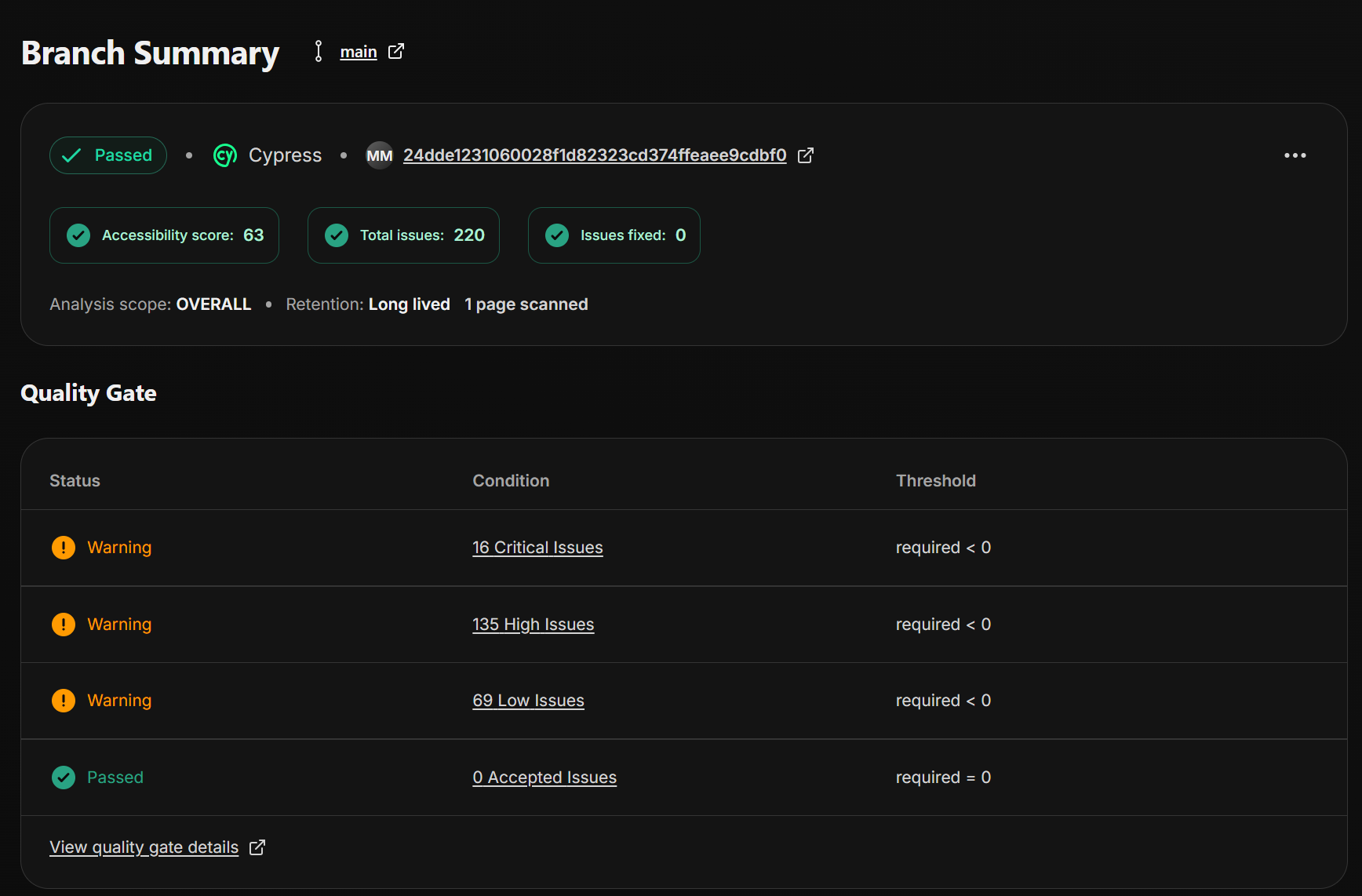
The first analysis scope is OVERALL, so all accessibility issues are included in the scan result.
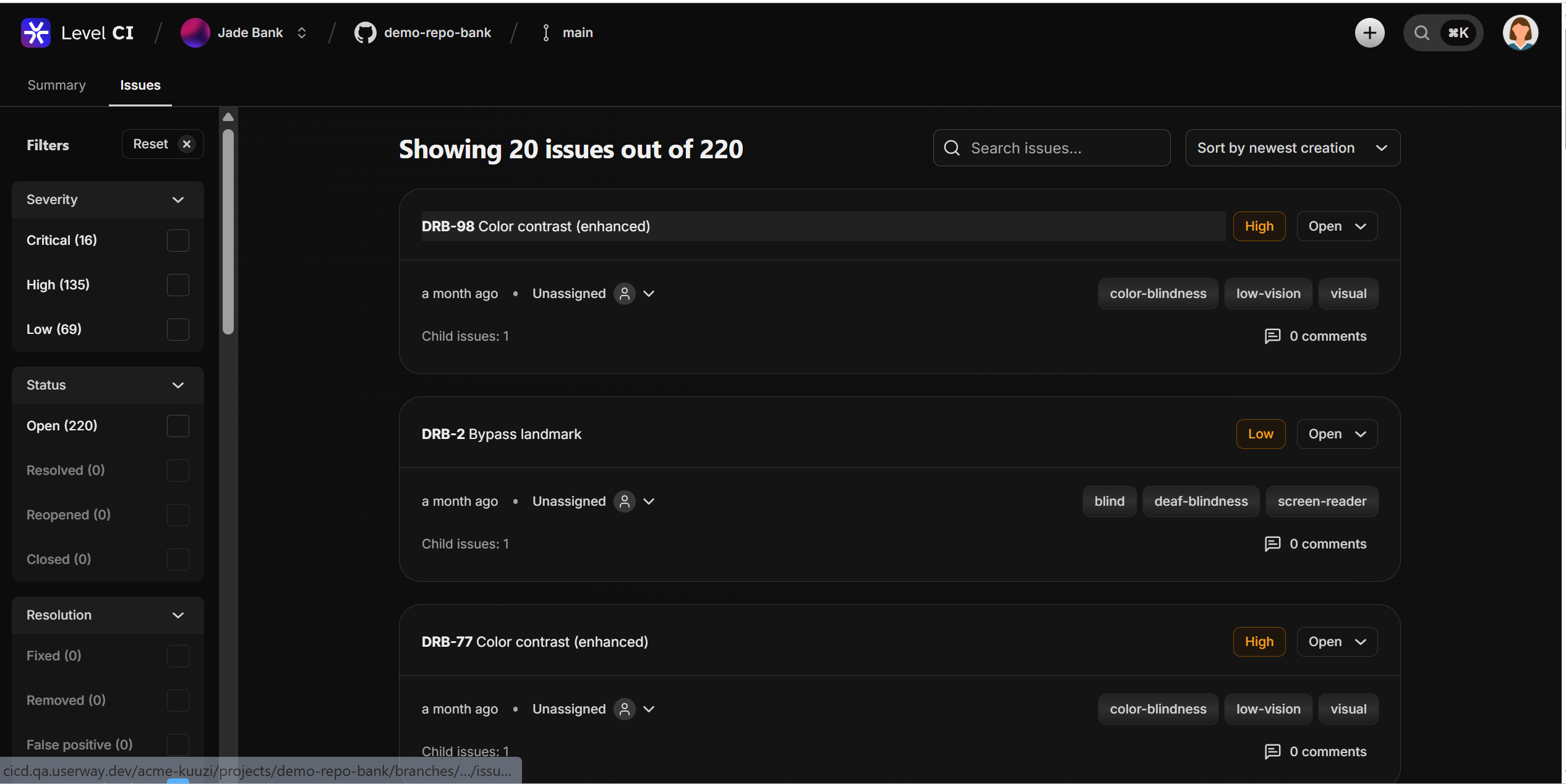
All issues for the default baseline branch are shown in the Level CI dashboard. When you click “View all issues,” the dashboard lists the full set of issues found in that baseline scan.
2. Pull request and delta branch scans before the baseline exists
If a pull request or delta branch scan runs before the default baseline branch has been scanned, Level CI treats that scan as a standalone result:
- The CI pipeline completes successfully unless another non-baseline error occurs.
- The dashboard shows a warning that the base branch needs to be scanned before delta scanning can be enabled.
- Issue counts are shown as standalone findings, not as “new” delta issues.
- Delta quality gate comparison is skipped until a completed baseline scan exists.
3. Ongoing baseline analysis
Going forward, the tool will automatically trigger a new analysis every time you make changes to the default baseline branch, whether it’s through:
- Direct pushes
- Pull request merges
- Branch merges
4. Workflow overview
4.1 Commit and push
Make changes to your code and push them to the repository.
4.2 Review check status
Monitor the status of your changes to ensure everything is processed correctly.
4.3 Troubleshoot
If there are issues, review the logs and resolve any problems.
4.4 Review analysis results
Once the analysis is complete, review the results to identify any potential issues or areas for improvement.
4.5 Adjust the accessibility quality gate
Modify the A11y Quality Gate if needed to improve the overall accessibility quality of your code.
4.6 Optionally re-run the analysis
If you’ve made changes or fixes based on the analysis, you can re-run the analysis to verify the improvements.